iPad Setup Instructions
Medical Check In is designed to be easy and fast. Setup is just as easy with no technical experience needed.
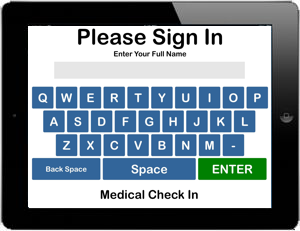
Download the App to your iPad

From your iPad, Click this icon
- From the Apple iPad, Open the App Store
- At the top look for the Search box and enter "Medical Check In"
- Install the Medical Check In App from Check In systems
- After it is installed, go to Settings and Sign Out
Connect the App
After installation, you will need to conect the app to your subscription
- Run the Medical Check In app
- At the first screen, type CONFIG and enter
- Insert your System ID and Password
- This process will syncronize your iPad with the online configuration
Setting Questions
The easiest way to set the questions and reasons for visit is from your online configuration. Log in to the back end and go to Configuration. Scroll to the questions and set which questions you would like to ask and save. Next, click on Reasons for Visit and fill in the blanks and save. After you have set your questions and reasons in the server side, the iPad will need to download the configuration. Go to the iPad and type UPDATE at the first screen. It will only make a ding sound signifying it has downloaded the configuration.Securing the iPad
Open the Settings App on the iPad and make these general settings changes.
- Bluetooth -> Off
- Screen Time->Turn Off Screen Time
- Siri & Search->Listen for "Hey Siri"->Off
- Siri & Search->Press Home for Siri->Off
- General->Software Update->Automatic Updates->Download iPadOS Update->Off
- General->Software Update->Automatic Updates->Security Responses & System Files->Off
- Display & Brightness->Appearance->Light
- Display & Brightness->Auto-Lock->Never
- Apple ID->Sign Out
If your stand does not cover the home button, you may want to run Guided Access on the iPad to further secure the app. This will remove the swipe down abilities to open the notifications area and it will lock the home button to a passcode.
That's it! Medical Check In is so easy, you should be running in about 15-20 minutes. If you have any trouble, please call us and we are more than happy to help. Your subscription includes unlimited support.
Enable Guided Access
Guided Access allows you to secure the home button and restrict access to any other program including the notifications area.- Launch the Settings app on your iPad.
- Tap on Accessibility.
- Tap on Guided Access under the General section.
- Toggle Guided Access On.
- Tap on Display Auto-Lock and tap never
- Tap on Passcode Settings and tap set guided access code (choose one you will remember)
- Open the Medical Check In App
- Triple Tap the Home Button
Be sure not to lose your passcode. Only Apple can recover this